How to Set Custom Files and Links in Spaces
This video walks through how to add custom files within Perplexity Enterprise Spaces, guiding users through creating a Space, connecting files, and running queries. It provides a step-by-step overview of integrating custom files for for analysis within Perplexity Enterprise.
Creating a Space
First, go to the navigate menu on the left, hover over Spaces (the third tab down), and click Spaces. Then, click "Create a Space." Next, name your space—here, I would use "Marketing Reports"—and you can also add a brief description. You will also want to add custom instructions to tailor the AI's tone or focus. For example, I put "always summarize key metrics first." Once you're done with your custom instructions, click "Continue" and your space will be created.
Connecting Files
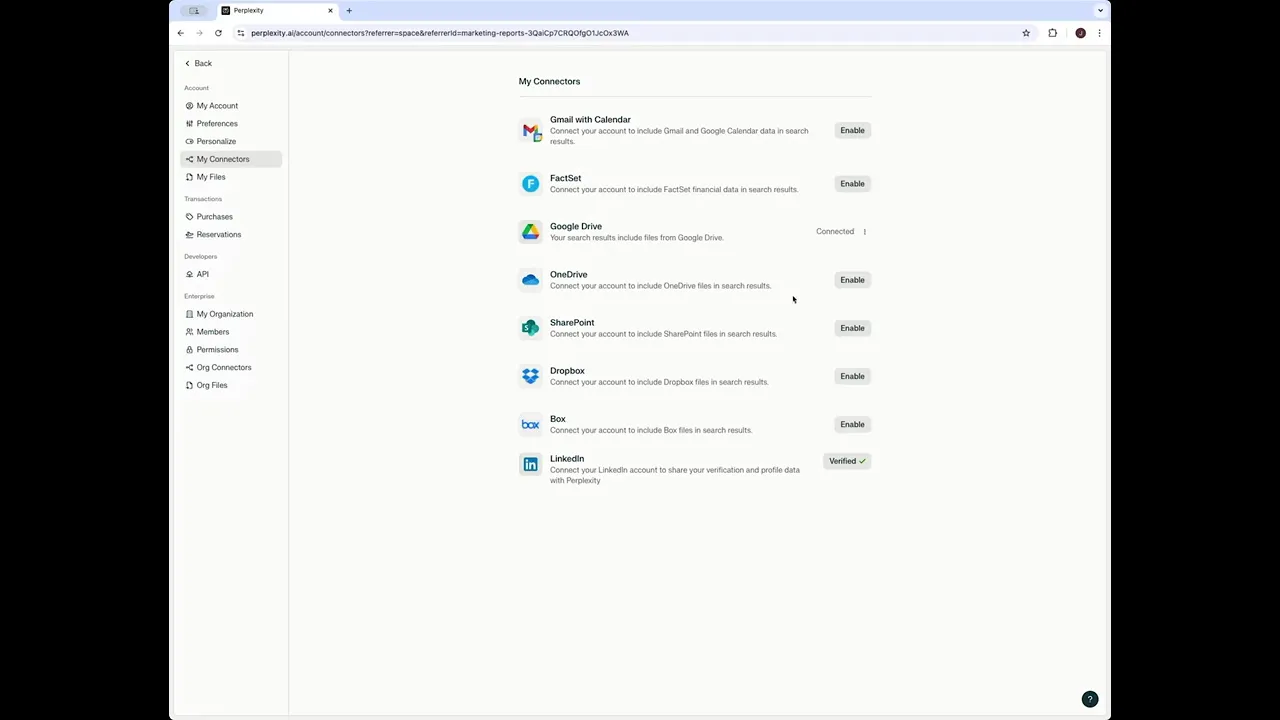
Now you want to make sure any file repositories you use are connected. Perplexity currently integrates with Google Drive, OneDrive, SharePoint, Dropbox, and Box. You can click on the corresponding arrow of the repository you have, and that will take you to your settings page, where you can enable that connector if it hasn't been enabled already.
Back in your space, go to Files, click the add button, and this is where you can search for files—either from your local files, connector files, or by adding links. Once your file shows up here, click "Add Files." You can also drag and drop your files, and each Enterprise user is allowed up to 50 files per space. Your files will sync instantly, and they're private unless shared. You can update the sharing settings and invite teammates or any viewers or contributors to your space.
Running Queries
Now that you're ready to run your query, you have your search here and can set the sources for your search. In the example, "Web" is toggled on, but if you want to focus on your files only, you would toggle off "Web" and toggle on "My Files." In this space, I've attached a file called "Demo," and when I run my query, I would say, "Summarize information from the attached file." Be sure to use your custom files for help analyzing reports, collaborating on projects, or building a knowledge hub.